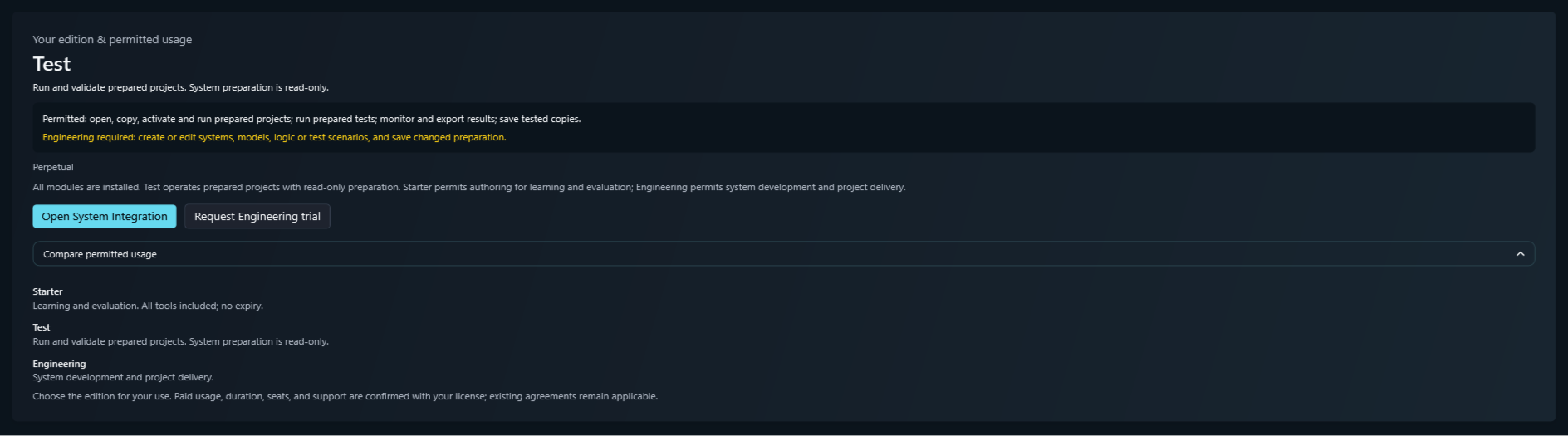
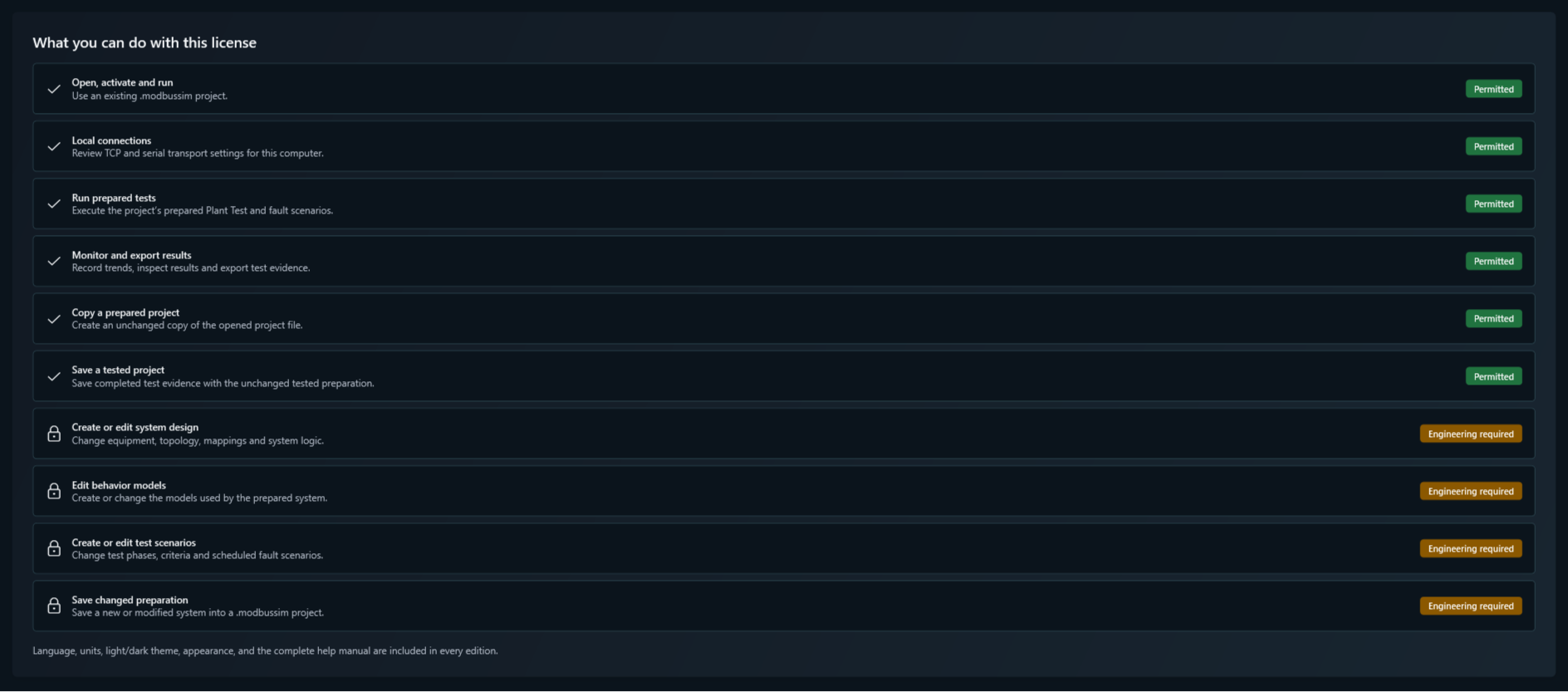
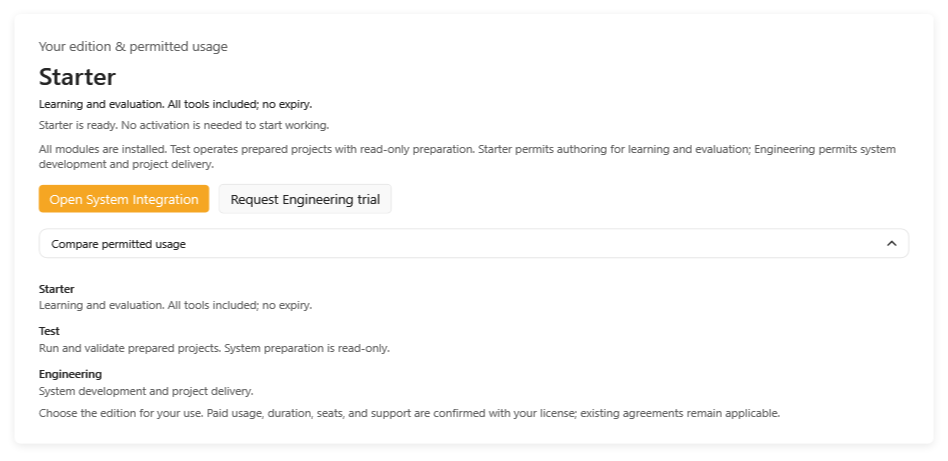
Request installer access first, then request the 14-day trial key after first launch. Trial and license requests are reviewed through info@modbussim.com.
Download

Request the installer, then activate the trial.

Start with approved installer access. After setup, copy the Machine ID from ModbusSim and submit it here for a machine-bound 14-day trial key.

Step 1

Request access to the installer.

This first request is for the Windows setup file. After the request is approved, the installer link can be sent by email.

After installation, ModbusSim opens the License page when no active license is found. Copy the Machine ID from that page before submitting the trial license request below.

Requests are reviewed through info@modbussim.com.
Step 2

Request the 14-day trial license.

Submit this request after ModbusSim is installed and the Machine ID is copied from the License page.

The Machine ID is required because the trial key is generated for the installed computer. Use the Copy Machine ID button on the License page before submitting this form.

The trial key is generated after the Machine ID is reviewed.

System requirements

Operating system Windows 10 or Windows 11
Runtime direction Finalize whether the installer bundles the runtime or asks for .NET separately.
Connection scope External controller communication over Modbus TCP or RTU.

What the download page should explain

  • Installer access is requested before the setup link is sent
  • The first application launch opens the License page when no license is active
  • The 14-day trial license requires the Machine ID from the installed application
  • Longer paid licenses can use the same Machine ID and feature list
First Launch Path

Keep the first-use instructions short and practical.

1

Request installer

Submit the installer access form and wait for the approved setup link.

2

Install and launch

Run the setup file, open ModbusSim, and copy the Machine ID from the License page.

3

Request trial key

Submit the 14-day trial license request with the copied Machine ID.

4

Activate and test

Paste the trial key on the License page, then confirm the enabled first-launch features.

First-Use Preferences

Confirm the workspace is readable before the first test.

After installation, the user can set the application language and choose the theme that fits the test environment.

Language selector

ModbusSim personalization page showing available application languages.

Use the language selector before preparing localized documentation or support screenshots.

French language check

ModbusSim personalization page with French selected as the application language.

Language-specific screenshots can be captured when visible UI text needs to match the page language.

Dark theme

ModbusSim personalization page showing the dark theme option.

Theme selection helps keep the application readable in different test environments.

Early Access

Installer delivery is handled by email.

For the first public release, the setup link and the machine-bound trial license key can be sent manually after each request is reviewed.